THE CLICK-BY-CLICK GUIDE
Your link in bio.
Every step, shown.
A link in bio is one address for your content, your work and you. Here’s how to build yours in fideio—from your first link to the moment you share it.
MY PAGE → EDIT PROFILE
Make a familiar first impression.
Open My Pages in the menu, choose Edit page, then click your photo or name to open Edit profile & socials. On a phone, use Pages in the bottom navigation. Tap your profile photo in the top bar to open Account, page setup or sign-out controls.
- Upload photo. Choose a JPG, PNG or WebP up to 4 MB. Add your display name beneath it.
- Choose your username. This becomes fideio.com/yourname. Use an available name with 3–30 lowercase letters, numbers, underscores or hyphens.
- Write your bio. Say who you are and what people will find. Scroll down to add your social handles, then click Save changes.
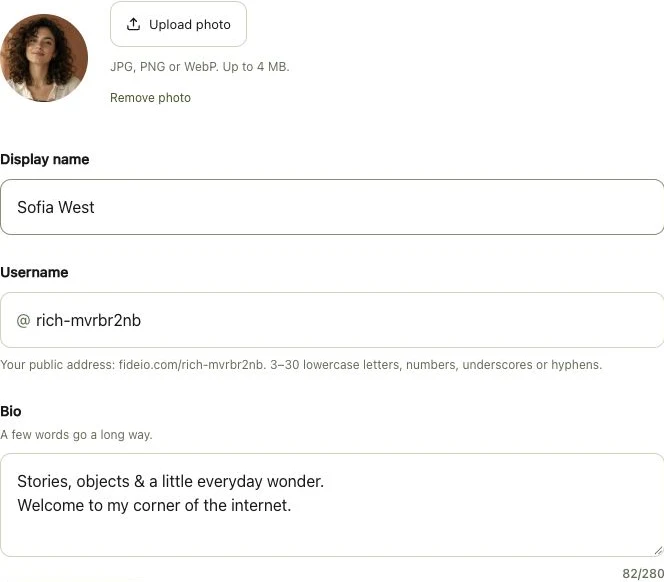
For social profiles, choose a platform and enter your handle or paste a profile link. Check the “Links to” destination before saving.
MY PAGE → ADD CONTENT → LINK OR VIDEO
Give people somewhere good to go.
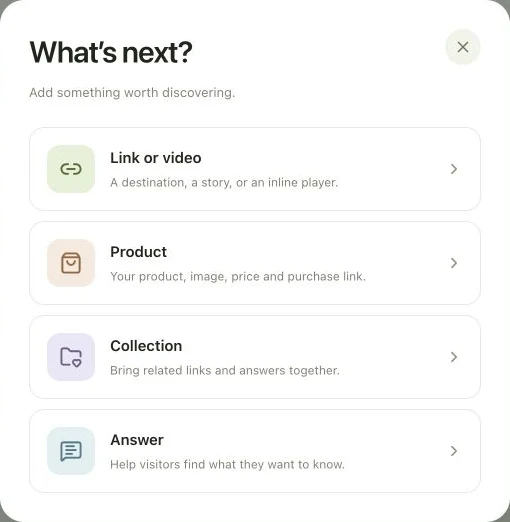
Click Add content in your page editor, then choose Link or video.
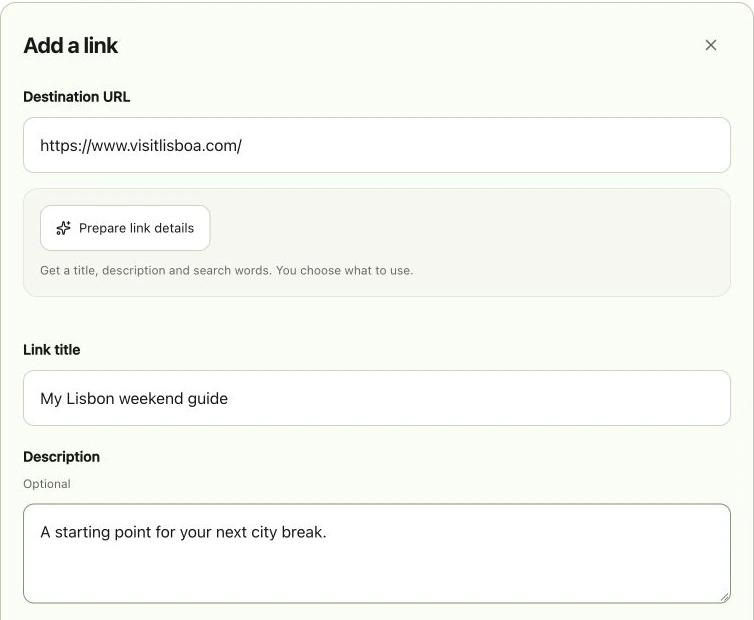
- Paste the Destination URL. Use the page you want visitors to open: a video, project, store or guide.
- Write a useful Link title. “My Lisbon weekend guide” explains more than “Click here.” Add a short description for context.
Have several destinations already? Import links lets you bring in URLs or a CSV. Find it under Page tools beside the content tabs.
INSIDE THE LINK EDITOR
Make the link worth a look.
Scroll down within the link form. Choose Classic for a compact row, Showcase for a larger card, Spotlight for an image cover, or Grid for two cards side by side. Let Auto decide if you prefer.
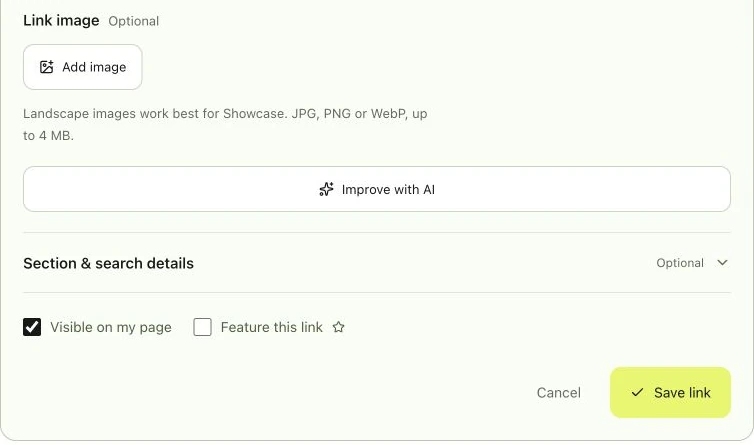
- Add image is optional. A landscape image works well with Showcase.
- Keep Visible on my page checked so visitors can see the link. You can also feature it or add section headings and search keywords.
- Click Save link. Watch the preview as you edit; it follows the item you’re working on.
YouTube, Vimeo and Spotify URLs can play right on your page. The link editor detects supported media; turn off Inline player if you prefer a normal link. On Plus and Pro, choose Add content → Product and paste a product URL to import its available name, image and price. Review the draft before showing it.
Back in the list, drag a link’s handle to change the order, or open its three-dot menu for up/down arrows. Find Arrange page under Page tools to reorder whole sections.
MY PAGE → ADD CONTENT → COLLECTION
Bring related things together.
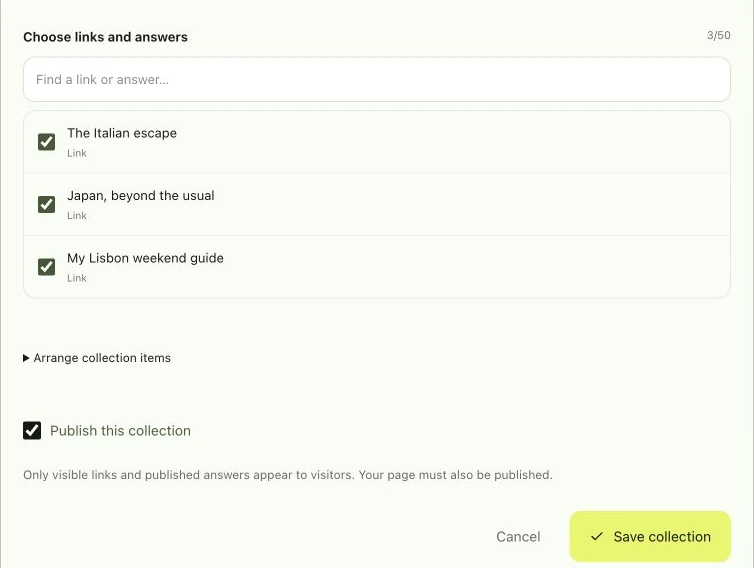
Collections are optional. Choose Add content → Collection, and give it a title such as “City guides.” Add an introduction and a cover if you like.
- Choose links and answers. Tick the existing content you want to group together.
- Check Publish this collection when it’s ready for visitors.
- Click Save collection. Your main page must also be published before the collection is public.
Every published collection has its own shareable address. Use the copy icon on its collection card to share that part of your world.
MENU → APPEARANCE → THEMES
Find your kind of different.
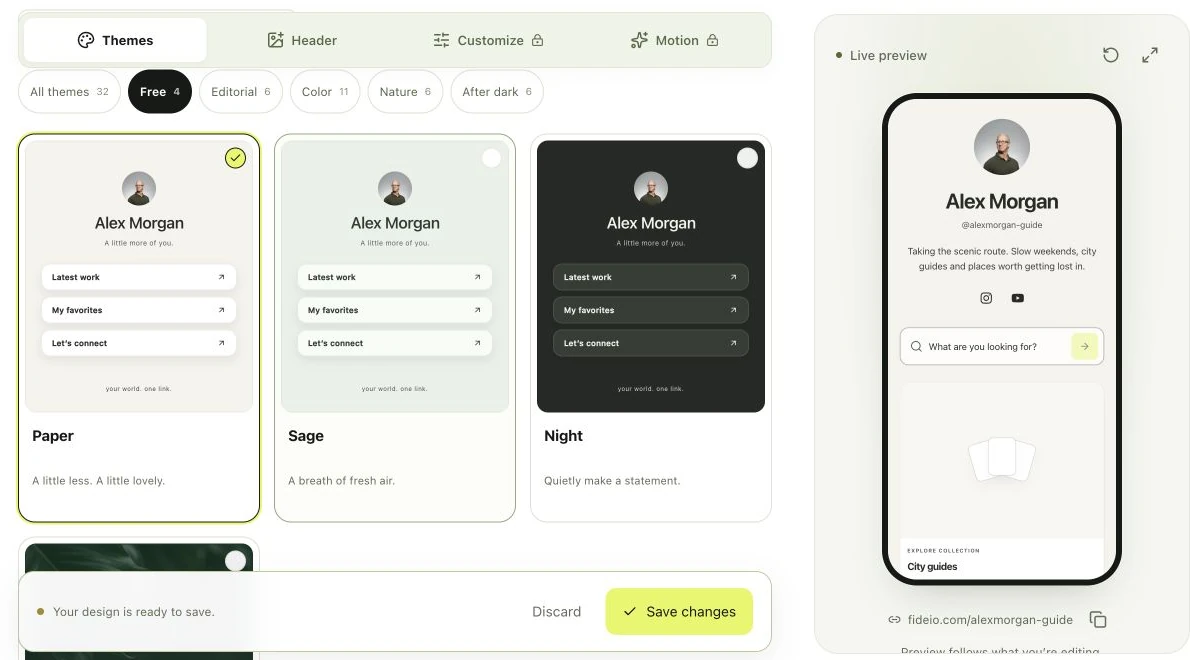
Open My Pages in the menu, then choose Design. In Themes, choose a look and watch your page change in the live preview.
- Choose the Free filter to see the four included themes: Paper, Sage, Night and Botanical.
- Click a theme card to try it. Here, Paper is selected.
- Click Save changes to keep your design.
For your own header image, open the Header tab. Free includes image headers; Plus and Pro unlock the complete theme collection and custom styling. Pro also supports short video headers. See the plans and limits.
PUBLISH PAGE → SHARE PAGE
One click live. Then, everywhere.
Save your edits, check your phone preview, then click Publish page in the top bar. Make sure your account email is verified first.

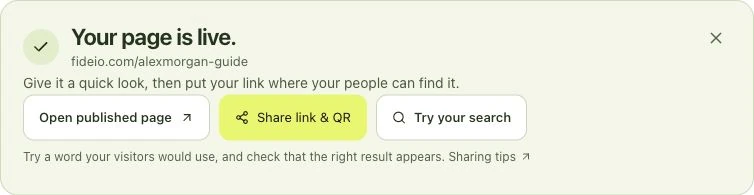
When you see Your page is live, you’re ready to share it.
- Open published page to check the page your visitors will see.
- Choose Share link & QR, then Copy page link in the sharing panel. Later, reopen that panel with Share page in the top bar.
- Try your search. Search for a word your audience would use and check that the right link appears.
Paste your address into the website/link field of your Instagram, TikTok, YouTube or other social profile. Keep this address as you update the content behind it. Download a QR code from the sharing panel for cards and printed pieces, or use the free QR tool for another address.
KEEP THE GOOD THINGS COMING
A useful page keeps growing.
Lead with a clear priority.
A new video, a project or a launch. Browse different use cases for ideas that fit your work.
Let people find an answer.
Add search keywords and publish answers to recurring questions. Update destinations when your content changes.
Learn from your Analytics.
Review profile views, link clicks, searches and requests. These are aggregate events, rather than unique visitors.
What about products, audience signups and analytics limits?
Plus and Pro can add product cards linking to an outside store, where the purchase takes place. Audience signups confirm the subscriber’s email and let you export confirmed contacts to your email service; bulk campaigns are not sent by fideio.
Free includes 30 days of activity history, Plus 90 days and Pro 365 days. Detailed search terms and top-link rankings cover the latest 30 days on every plan. Check the current plans and limits before choosing paid features.